

You’ve narrowed your choice down to two platforms: Webflow and Framer. Both look impressive. Both are used by designers and startups you admire. And every comparison article you’ve read confidently tells you to pick one without actually explaining why.
Here’s the honest truth about Webflow vs Framer: they are not direct competitors in the way most guides suggest. They’re built with different priorities, for different types of projects, and choosing the wrong one can mean weeks of frustration before you’ve even published a single page.
This guide is written specifically for beginners, people who don’t have a background in web development and just want a clear, honest answer. We’ll compare both platforms on every factor that actually matters: ease of use, pricing, CMS, SEO, and long-term potential. By the end, you’ll know exactly which one is right for what you’re building.
What this guide covers: Everything a beginner needs to decide
- What Webflow and Framer are, in an easy way.
- How does each one feel about using it as a complete beginner?
- Real 2026 pricing with the hidden costs most articles skip.
- Which is better for CMS, SEO, and eCommerce?
- A clear, honest recommendation based on your use case.
What Are Webflow and Framer? An Easy Introduction
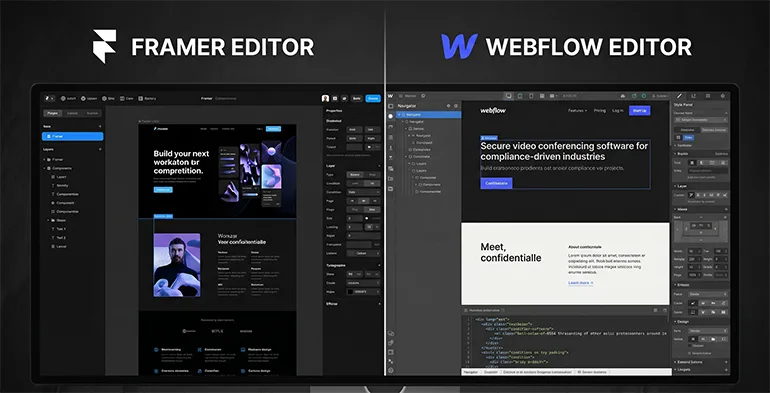
Both Webflow and Framer are no-code website builder platforms that let you design and publish a professional website without writing code. But they take very different approaches to how they do that.
What is Webflow?
Webflow is a visual website builder that works very much like how a developer builds websites, but without requiring you to write any code. When you move an element on the page, drag it, resize it, or change its style, Webflow is generating real HTML and CSS behind the scenes.
This is what makes Webflow so powerful. The sites it produces are clean, fast, and export-ready. It has a full built-in CMS for blogs and dynamic content, strong SEO controls, and a native eCommerce system. But it also means Webflow has a steeper learning curve to use it properly; you’ll eventually need to understand concepts like the box model, flexbox, and CSS classes. Not from day one, but as you grow.
Webflow powers over 658,000 live websites including brands like Dropbox Sign, TED, and MURAL. It has a large template marketplace, extensive learning resources at Webflow University, and a strong community.
What is Framer?
Framer started as a prototyping tool used by UX designers and has evolved into a full website builder with a strong emphasis on visual design and speed of publishing. Its interface is heavily inspired by Figma, if you’ve used Figma before, Framer will feel immediately familiar.
Where Webflow thinks like a developer, Framer thinks like a designer. You work on a freeform canvas, drag elements wherever you want, and the tool handles the structure automatically. This makes Framer significantly faster to get started, so that most beginners can have a beautiful site live within a few hours of first opening the editor.
Framer powers over 232,000 live websites and is growing fast, particularly among solo creators, startup founders, and indie designers who want polished results without a technical learning curve.
Webflow vs Framer: Side-by-Side Comparison
Before diving into each area in depth, here’s a full overview of how both platforms compare across the key factors a beginner needs to consider:
Feature | Framer | Webflow |
Learning curve | Gentle — Figma-like feel | Steeper — needs CSS knowledge |
Entry paid plan | $10/mo (Basic, annually) | $14/mo (Basic, annually) |
CMS included at entry | 1 collection (Basic plan) | No CMS — needs $23/mo plan |
Free plan | Yes — framer.site subdomain | Yes — webflow.io subdomain |
Free domain on paid plan | Yes — .com on yearly plans | No — buy separately (~$12-20/yr) |
Templates | 1,100+ free templates | 90+ free, 1,000+ paid ($29-149) |
eCommerce | No native checkout | Yes — built-in (from $29/mo) |
SEO tools | Core controls + 30-day analytics | Full control + schema markup |
Animations | Smooth, modern, easy to add | Snappier (GSAP) but more complex |
Code export | No | Yes (paid Workspace plan) |
Best for | Portfolios, landing pages, startups | Blogs, content sites, eCommerce |
Ease of Use: Which Is Easier for a Complete Beginner?
This is where the two platforms diverge most clearly, and it’s the most important factor for a beginner.
Framer’s learning curve
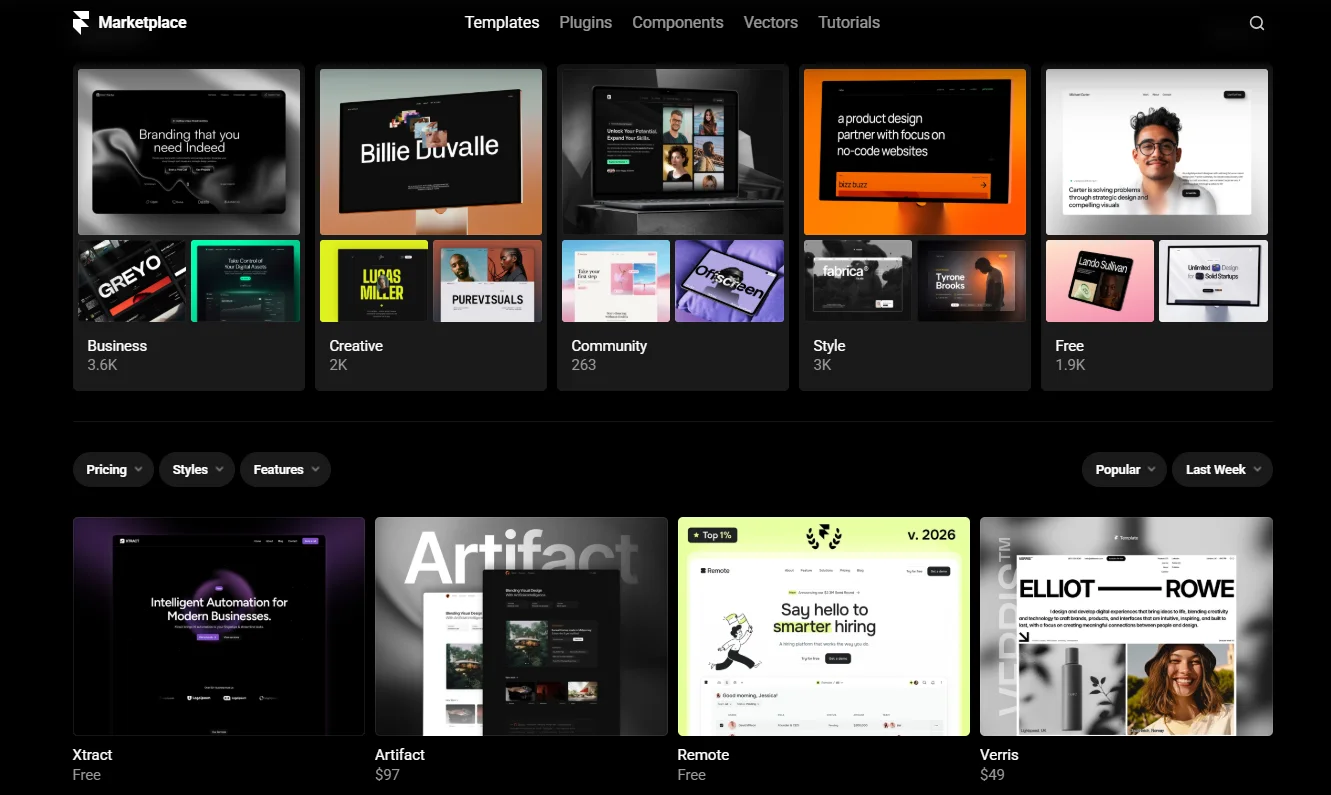
Framer is designed to feel intuitive from the first session. The interface looks and behaves like a design tool — you see your site visually, drag elements around a canvas, and what you see is very close to what your visitors will see. There’s no need to understand CSS classes, flexbox, or the box model to get started.
Framer’s onboarding is smooth. You choose a template (there are over 1,100 free ones), it loads into the editor, and you start replacing placeholder content with your own. Most beginners report being able to produce something genuinely impressive within their first day. If you’ve used Figma, Sketch, or any other design tool before, Framer will feel almost instantly natural.
The limitation is that this ease comes with less structural control. Framer’s freeform canvas can make it harder to build very complex page structures predictably, especially as your site grows beyond a few pages.
Webflow’s learning curve
Webflow is harder to start with. Its interface is dense. There are panels for layout, spacing, typography, interactions, and more — all visible at once. The first time you open Webflow, it can genuinely feel overwhelming.
Webflow does try to ease you in. There’s a Guided Tutorial option when you start your first project that walks you through the interface via interactive tooltips. Webflow University offers free courses from beginner to advanced. But the reality is that to use Webflow properly — especially to build responsive layouts and manage styles across a site — you’ll need to invest several hours in learning before you feel confident.
The payoff for that investment is significant. Once you understand how Webflow works, you have far more control over your site than almost any other no-code tool. But for a complete beginner who wants something live quickly, that learning investment is real.
Winner: Framer
For ease of use and speed to launch, Framer wins clearly for beginners. Most people can publish a professional-looking site in their first session. Webflow requires a meaningful time investment before you feel in control.
Webflow vs Framer Pricing: What You’ll Actually Pay in 2026
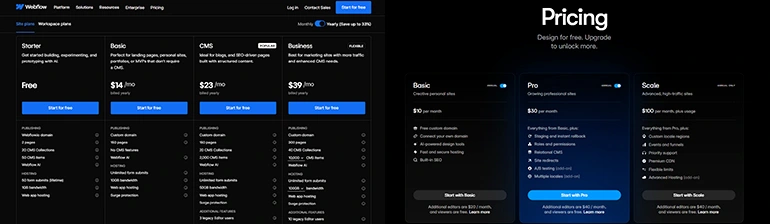
Both platforms have free plans and paid tiers, but their pricing structures are quite different, and there are hidden costs that most comparison articles don’t mention. Here’s the honest breakdown based on verified 2026 pricing.
Plan | Framer | Webflow | What you get |
Free | $0 | $0 | Custom domain: No. Subdomain only for both. |
Entry paid | $10/mo (Basic, annual) | $14/mo (Basic, annual) | Custom domain. Note: Webflow Basic has NO CMS. |
Mid (with CMS) | $30/mo (Pro, annual) | $23/mo (CMS, annual) | Webflow cheaper here. Framer Pro includes staging. |
Free domain | Yes (yearly plans) | No — buy separately | Framer saves $12-20/year on domain. |
Free analytics | 30 days included | Paid add-on only | Framer saves $0-25+/mo on analytics. |
eCommerce | Not available | From $29/mo | Webflow only option for native checkout. |
The hidden cost most guides skip: the domain and analytics gap
Framer includes a free .com domain on all yearly plans. Webflow does not — you need to purchase your domain separately from a registrar like Namecheap for around $12-20 per year and connect it manually. Over two or three years, this adds up.
Framer also includes 30 days of built-in site analytics with every paid plan. With Webflow, traffic analytics require a paid add-on. If you want to see where your visitors are coming from and which pages are performing, you’re either paying extra or relying on a third-party tool like Google Analytics.
The CMS pricing trap in Webflow
This is the biggest pricing trap for Webflow beginners. Webflow’s entry Basic plan at $14/month includes a custom domain and hosting — but absolutely no CMS. If you want to run a blog, manage portfolio items, or handle any dynamic content, you need to upgrade to the CMS plan at $23/month. This jump catches almost every beginner off guard.
Framer’s Basic plan at $10/month includes one CMS collection — enough for a simple blog or portfolio gallery. For most beginners building their first real site, Framer’s entry-level pricing is genuinely cheaper once you account for the CMS, domain, and analytics included.
When Webflow’s pricing makes more sense
At the mid tier, Webflow’s CMS plan ($23/month) is actually cheaper than Framer’s Pro plan ($30/month) for the same level of CMS functionality. And for anything involving eCommerce, Webflow is the only option — Framer has no native checkout system. If selling products is part of your plan, Webflow’s eCommerce plans starting at $29/month are the clear choice.
Winner: Framer
For most beginners, Framer is cheaper once you factor in the free domain and built-in analytics. Webflow can be cheaper at the mid tier, but the entry-level CMS trap makes Framer the safer budget choice for someone just starting out.
CMS and Blogging: Which Handles Content Better?
CMS stands for Content Management System. In plain English, it’s the system that lets you manage repeating content like blog posts, portfolio items, or team members, without editing individual pages manually.
Framer’s CMS
Framer introduced its CMS in 2023 and has developed it significantly since. On the Basic plan, you get one collection (one type of content, like blog posts). The Pro plan gives you unlimited collections and up to 1,000 items, enough for a well-maintained blog, a portfolio, or a team directory.
Framer’s CMS is clean and fast to set up. For small to medium sites, a blog with under 100 posts, a portfolio with under 50 projects, it works well. The interface feels intuitive and you can be up and running with a blog in less than an hour.
The limitations appear as you scale. Framer’s CMS doesn’t support relational fields (linking content types together) with the same depth as Webflow. For a complex editorial site with multiple content categories that reference each other, Framer starts to show its limits.
Webflow’s CMS
Webflow’s CMS is more powerful and has been production-tested by larger sites for longer. The CMS plan includes 2,000 items and multiple collections. The Business plan supports up to 40 collections and 20,000 items, suitable for proper content operations. Webflow also supports relational fields and multi-reference fields, which means you can link content types together in sophisticated ways.
For a site that plans to grow into a real content hub, hundreds of articles, multiple content categories, proper editorial workflow, Webflow’s CMS is a more capable foundation.
Winner: Webflow
For content-heavy sites, blogs with aggressive publishing schedules, and sites that need complex content relationships, Webflow’s CMS is the stronger choice. For a simple blog or portfolio gallery, Framer’s CMS is sufficient and easier to set up.
SEO: Which Platform Ranks Better?
Both Framer and Webflow give you the basic SEO tools you need: custom meta titles and descriptions, canonical tags, sitemap generation, and 301 redirects. For a beginner building their first site, both are more than adequate.
The differences matter at scale. Webflow gives you full control over meta tags, page structure, Open Graph settings, and even schema markup — all from within the designer. Webflow’s code output is clean, semantic HTML and CSS that search engines index efficiently. It also supports schema markup, which can help your content appear as rich results in Google.
Framer covers the core SEO controls well — and importantly, redirects are only available on Framer’s Pro plan and above. If you’re on the Basic plan and need to redirect old URLs to new ones, you’d need to upgrade. Webflow includes redirects on paid site plans from the Basic tier.
One genuine Framer SEO advantage: it includes 30 days of built-in analytics so you can see traffic data immediately. With Webflow, you’d either need to set up Google Analytics manually or pay for Webflow’s Analyze add-on.
For aggressive long-term SEO strategies — building hundreds of articles targeting dozens of keyword clusters — the web design community largely agrees that Webflow’s deeper SEO controls and cleaner code structure give it an edge. For a 10-page marketing site or a small blog, both platforms are effectively equal for SEO purposes.
Winner: Webflow
For serious SEO content strategies at scale, Webflow’s deeper controls, schema markup support, and clean HTML output give it an edge. For most beginner projects, both platforms are equally capable for SEO.
Design Quality and Animations: Which Looks Better?
This is where honest preference comes in. Both platforms can produce beautiful websites — but they have different default aesthetics.
Framer’s design strengths
Framer sites have a distinctive visual quality — modern, smooth, and very polished out of the box. The animations in Framer are particularly impressive: smooth transitions, parallax effects, scroll-triggered animations, and interactive elements are all easy to add without any technical knowledge. These are the kinds of effects that make a site feel premium and memorable.
Framer’s template library — over 1,100 free options — is consistently praised for design quality. If you start with a Framer template, you’re starting from a strong visual foundation that will look contemporary even with minimal customisation.
Webflow’s design strengths
Webflow’s animations, built on a system using GSAP (a professional animation library), are technically more precise and snappier than Framer’s. For developers and experienced designers, Webflow’s Interactions 2.0 system offers extremely fine-grained control over how elements animate. But this control comes with complexity — setting up Webflow interactions takes more time and knowledge than adding animations in Framer.
Webflow’s design output is also excellent, but it requires more effort to achieve the same level of visual polish that Framer delivers more automatically.
Winner: Framer
For a beginner who wants their site to look impressive and feel modern with minimal effort, Framer’s design quality and animation ease give it a clear edge. Webflow can match it, but requires more investment to get there.
eCommerce: Can You Sell Products on Both?
This one is simple. If you want to sell products directly through your website — with a proper shopping cart, checkout, inventory management, and payment processing — Webflow has a native eCommerce system and Framer does not.
Framer has no built-in checkout. To sell through a Framer site, you’d need to use a third-party tool like LemonSqueezy or embed a Shopify Buy Button. These workarounds can work for selling simple digital products, but they’re not as seamless as Webflow’s native eCommerce.
Webflow’s eCommerce plans start at $29/month and include product management, inventory, checkout, payment processing, and shipping tools. For anyone building an online store, Webflow is the straightforward choice.
Winner: Webflow
For eCommerce, Webflow is the only serious option between the two. If selling products is any part of your plans, Webflow is the correct choice.
Which Should You Choose? The Honest Answer for Beginners.
Most comparison guides refuse to give a direct answer. Here is one:
If you’re a complete beginner who wants to build a portfolio, personal brand site, or startup landing page, start with Framer. You’ll be live faster, the learning curve is gentler, the entry pricing is lower, and the default design quality is impressive. These are all concrete advantages that matter when you’re just starting out.
If you’re building a content site that will grow into a real blog, planning serious SEO content marketing, need native eCommerce, or want a platform that will give you developer-level control as you grow, choose Webflow. The steeper learning curve is a real investment that pays off for these use cases.
Choose Framer if... | Choose Webflow if... |
You want the fastest path to a live site | You plan to publish a blog or lots of content |
You have experience with Figma or design tools | You want native eCommerce built in |
You're building a portfolio or landing page | You need the most SEO control and schema markup |
Budget matters — entry plans are cheaper | You want to export your site's code |
You want a free domain on yearly plans | You're building a large, long-term content site |
You have no CSS or web development background | You need developer-friendly features as you grow |
One practical approach many builders use: start with Framer for speed and ease, then migrate to Webflow if and when the content or technical requirements outgrow what Framer handles well. This is a legitimate path and many successful sites have followed it.
Frequently Asked Questions
Is Framer easier than Webflow for beginners?
Yes, meaningfully so. Framer’s interface is designed to feel familiar to anyone who has used design tools like Figma. You work on a visual canvas, drag elements freely, and can publish a site in your first session. Webflow’s interface is more complex and requires understanding CSS concepts like flexbox and classes before you feel fully in control. For a complete beginner, Framer has a much shorter path from ‘account created’ to ‘site live’.
Which is cheaper – Framer or Webflow?
For most beginner use cases, Framer is cheaper once you account for all costs. Framer Basic is $10/month (annually) vs Webflow Basic at $14/month. Framer includes a free domain on yearly plans; Webflow requires a separate domain purchase. Framer includes 30-day analytics; Webflow requires a paid add-on. At the mid tier, Webflow’s CMS plan at $23/month is cheaper than Framer Pro at $30/month — but Framer Pro includes staging environments that Webflow doesn’t at that price. Always calculate the total cost including domain, analytics, and CMS needs, not just the headline plan price.
Does Framer have a CMS for blogging?
Yes. Framer’s CMS is available from the Basic plan (1 collection) and gives you unlimited collections on Pro and above. It’s sufficient for a blog, portfolio, or team page. The limitation is that it doesn’t have the depth of relational content management that Webflow offers — for a simple to medium blog, Framer works well; for a large content operation with multiple content types that reference each other, Webflow’s CMS is the stronger choice.
Can I sell products with Framer?
Not natively. Framer has no built-in shopping cart or checkout system. You can embed third-party tools like LemonSqueezy for digital products or a Shopify Buy Button for physical products, but these are workarounds. If selling products through your site is a core requirement, Webflow is the correct platform — it has a native eCommerce system built directly into the platform.
Is Webflow or Framer better for SEO?
Both platforms give you the core SEO controls you need — meta titles, descriptions, canonical tags, sitemaps, and redirects. For most beginner projects, the SEO difference between the two platforms is negligible. At scale, Webflow has an advantage: deeper schema markup control, cleaner HTML output, and better support for complex content structures that support aggressive content marketing strategies. Framer has an advantage in built-in analytics (30 days free), which helps you see SEO performance without additional setup.
Webflow vs Framer: Ready to Make Your Choice?
Both Webflow and Framer are genuinely excellent platforms. The right choice comes down to what you’re building and how much time you want to invest in learning.
For most beginners building their first website, start with Framer. Create a free account, pick a template you like, and spend 30 minutes in the editor. You’ll know quickly whether it feels right for your project.
If you decide Webflow is the better fit for your content or eCommerce ambitions, Webflow University offers free beginner courses that will get you up to speed faster than any other resource.
Not sure if either of these fits your skill level? Get the full breakdown of each platform or check out our top-rated alternatives for this year:
