
You’ve decided to build your site with Webflow. Smart choice. But now you’re staring at thousands of templates and have no idea where to start.
Some templates look stunning in the preview but fall apart when you try to customise them. Others look clean but are missing the pages you actually need. And browsing through hundreds of options looking for the right fit is genuinely exhausting — especially when you’re new to the platform.
This guide cuts through that. We’ve identified the best Webflow templates for beginners in 2026 across the categories that matter most — portfolios, blogs, business sites, and SaaS. You’ll also learn the one thing most template guides skip: what to check before you buy, and the hidden cost that trips up almost every new Webflow user.
What this guide covers: Everything a beginner needs to choose confidently
- Free vs premium Webflow templates honestly compared.
- The best picks for portfolios, blogs, and business sites.
- What to check before you buy any template.
- The pricing trap most beginners fall into.
- How to find and use templates from the official Webflow marketplace.
What Is a Webflow Template and How Does It Work?
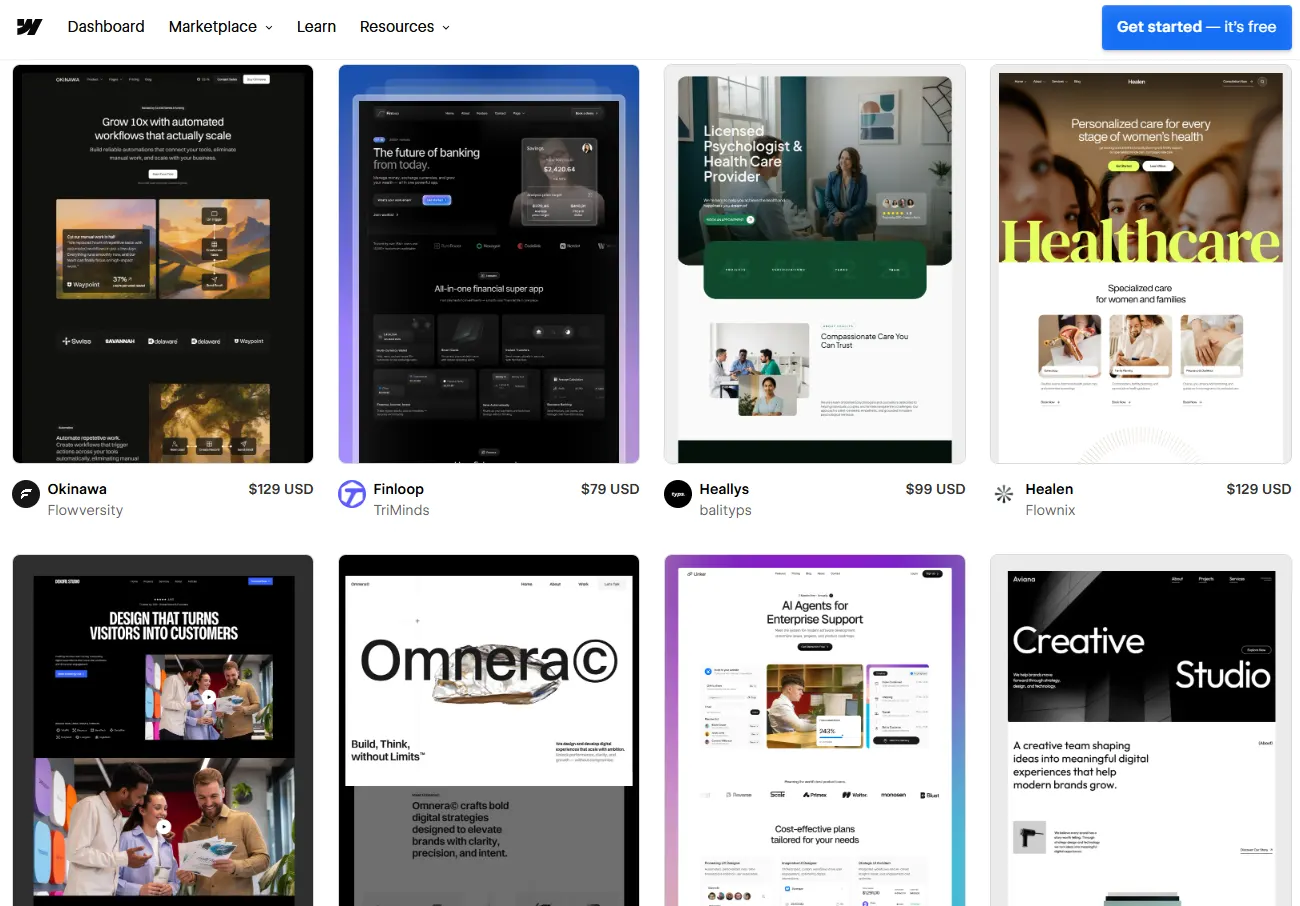
A Webflow template is a pre-built website design that you can load directly into your Webflow account and customise with your own content, colours, and branding. Instead of building every page from scratch, you start from a professionally designed foundation and adapt it to your needs.
Templates in Webflow are different from templates on platforms like Wix or Squarespace. Because Webflow gives you access to the full design layer, you can change almost anything in a template — layout, spacing, typography, animations, page structure — without restrictions. This flexibility is one of the main reasons designers and developers prefer Webflow. But it also means templates can feel more complex to beginners than on simpler platforms.
The official Webflow template marketplace (webflow.com/templates) hosts over 1,000 free and premium templates. Templates are created both by Webflow itself and by independent designers. Each listing shows a preview, the pages included, and whether CMS (content management) features are built in.
Free vs Premium Webflow Templates: Which Should You Choose?
This is the first decision you need to make, and the answer depends entirely on what you’re building and how quickly you want to launch.
Free Webflow Templates | Premium Webflow Templates | |
Price | $0 — use immediately | $29 to $149 one-time |
Design quality | $0 — use immediately | Polished, distinctive, modern |
Pages included | 3-8 pages typically | 8-20+ pages with variations |
CMS setup | Basic or none | Full CMS with collections |
SEO structure | Basic | Full CMS with collections |
Support | Community only | Dedicated creator support |
Updates | Infrequent | Regular compatibility updates |
Best for | Testing Webflow, basic sites | Client work, business sites |
When free templates make sense
Free Webflow templates are a genuinely good choice for beginners who are new to the platform and want to learn without financial commitment, building a personal portfolio with basic pages, testing an idea or launching a quick landing page, or working with a tight or zero budget.
Webflow offers 30+ free templates created by their own team, covering categories including portfolio, blog, retail, coffee shop, business, and multipurpose. These are available at webflow.com/templates and are clearly labelled as free. You can also find free community-created templates (called ‘cloneables’) in the Made in Webflow section — these have a Clone button instead of a purchase button.
When premium templates are worth the investment
Premium Webflow templates range from $29 to $149 as a one-time purchase. For most business-focused projects, the extra investment makes sense because premium templates include more pages, more polished design details, built-in CMS setup for blogs or portfolios, better SEO structure, and dedicated support from the creator if you get stuck.
For a beginner building their first real business website or client project, spending $49-79 on a premium template often saves many hours of design work. The key is choosing the right template for your specific use case — not just the one that looks the most impressive in screenshots.
Important: The hidden cost most beginners miss
Webflow templates are a separate one-time purchase. But to actually publish your site on a custom domain, you also need a Webflow site plan — starting at $14/month (or $18/month billed monthly). Many beginners only budget for the template and are surprised when they can’t go live without a paid hosting plan. Factor both costs in before you start. The free Starter plan lets you build and test on a webflow.io subdomain, but a custom domain requires a paid plan.
The Best Webflow Templates for Beginners in 2026
The templates below are chosen specifically with beginners in mind — clean structure, easy to customise, and well-suited for the most common beginner use cases. Each is available directly from the Webflow template marketplace.
01. Olivia12 – Portfolio & Agency Website Template by UI Bucket | Portfolio — Free
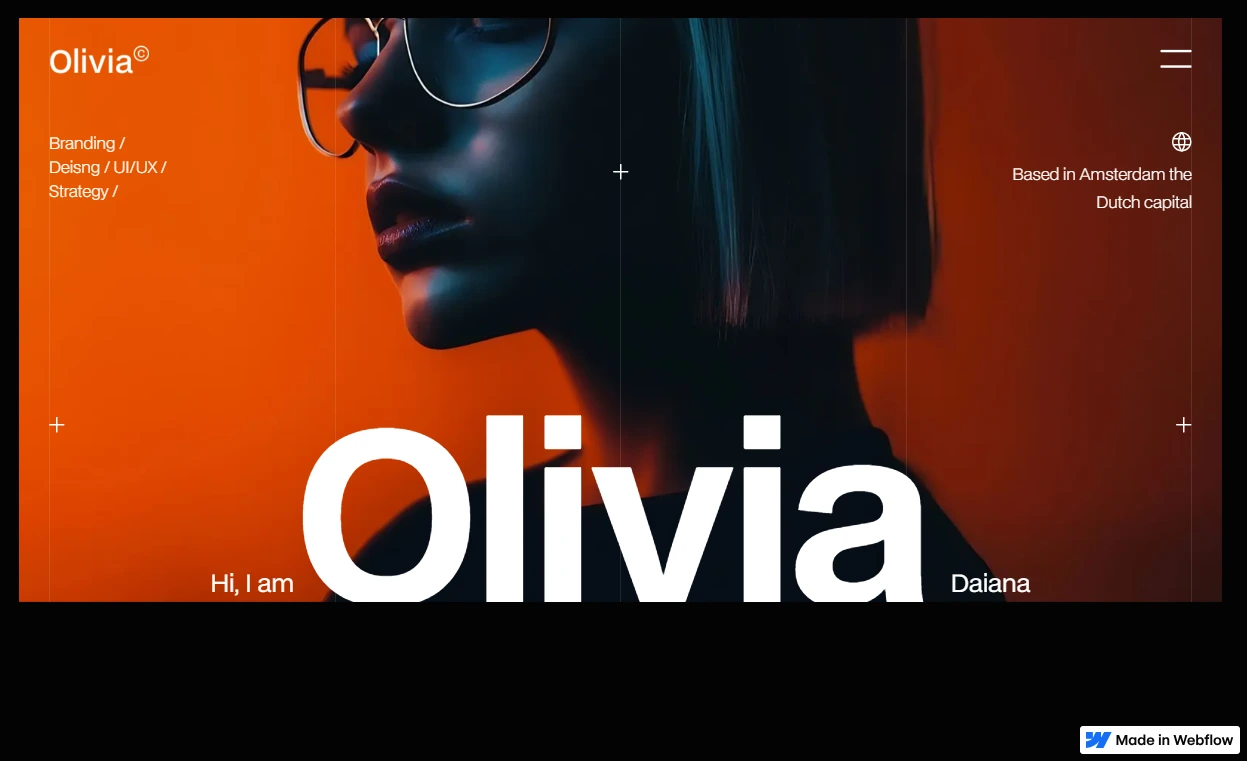
$0 FREE TEMPLATE
Best for: Designers, freelancers, and anyone building their first portfolio
Key features: Multi-page layout, project showcase, contact section, mobile responsive. Clean and minimal — almost no learning curve.
Find it: https://webflow.com/templates/html/olivia12-website-template
02. Strevora – Professional Services Website Template by Radiant Templates | Business — Free
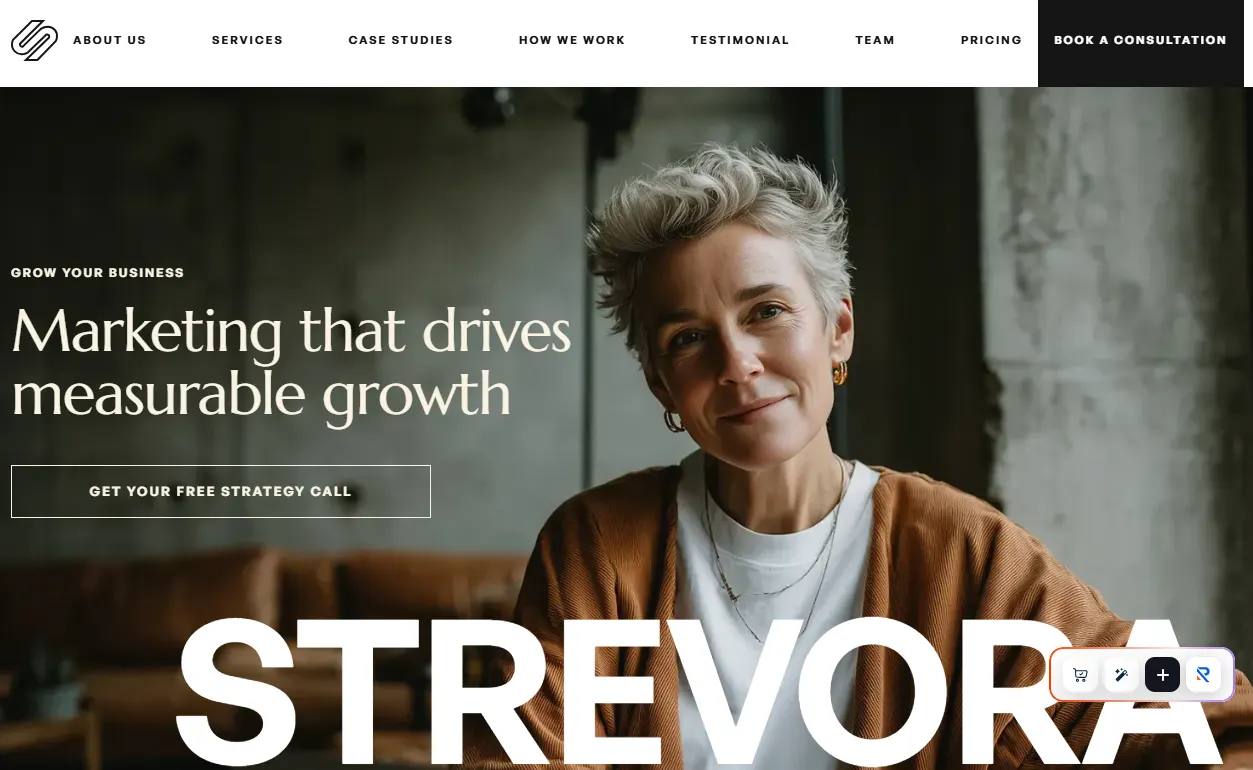
$0 FREE TEMPLATE
Best for: Small agencies, consultants, and local businesses needing a polished site fast
Key features: Single-page layout, professional home layout, clean contact form, scalable structure. Good foundation for a real business site without paying for a template.
Find it: https://webflow.com/templates/html/strevora-website-template
03. Warsaw – Personal Website Template by Azwedo | Portfolio — Premium
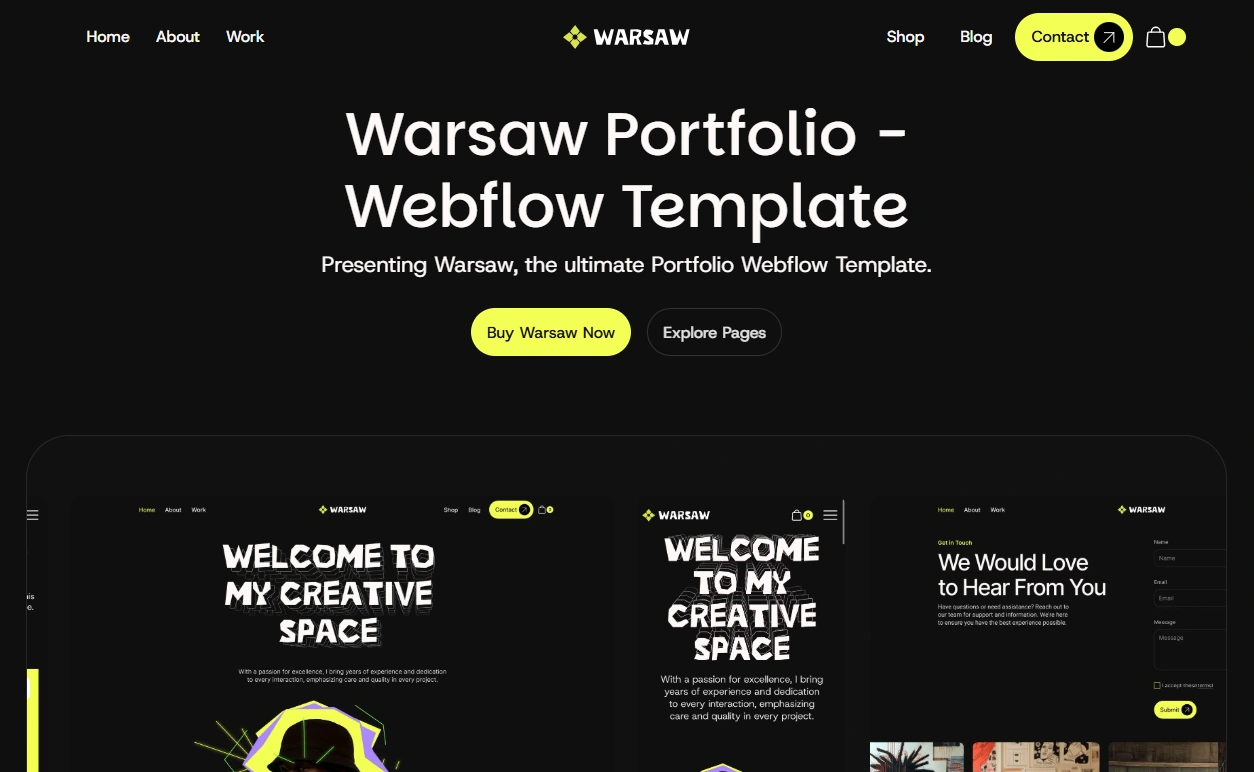
~$79
Best for: Creatives and designers who want a more structured portfolio with CMS
Key features: CMS-powered portfolio, clean typography, easy to expand. Found in the Made in Webflow cloneables section.
Find it: https://webflow.com/templates/html/warsaw-website-template
04. Wondr – Portfolio & Agency Website Template by Onixtheme | Agency / Portfolio — Free
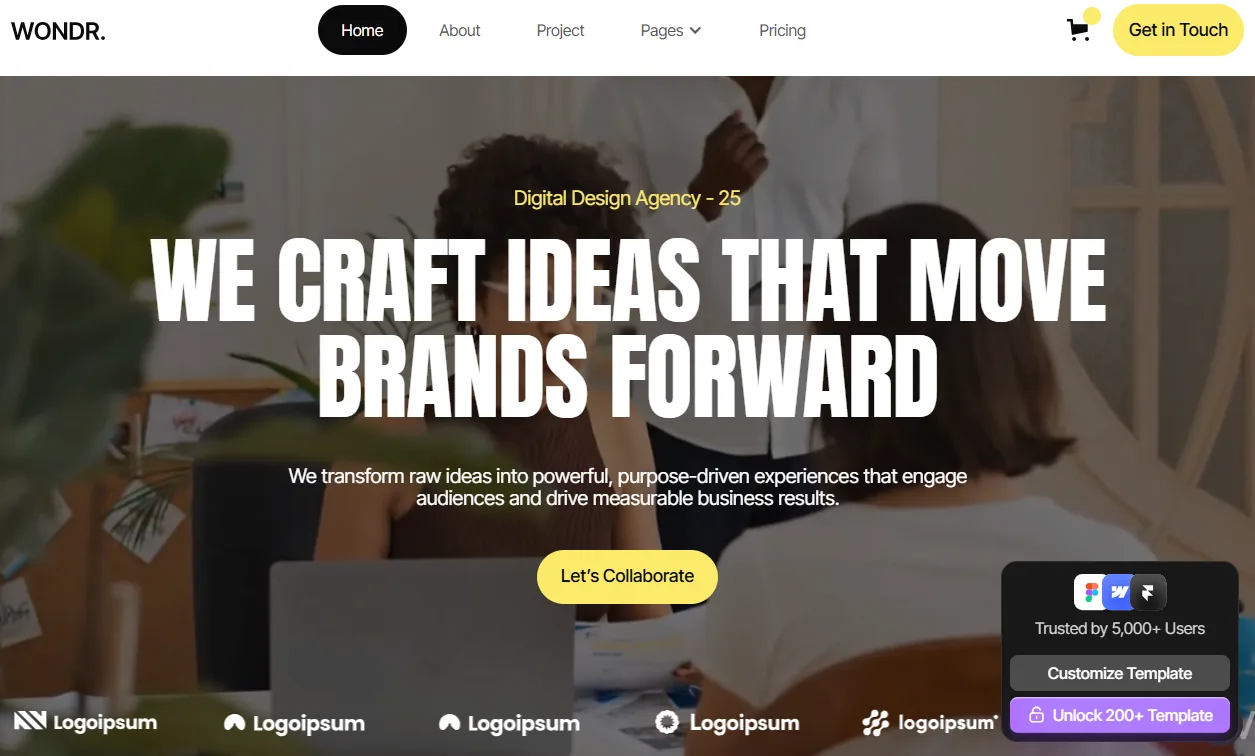
$0 FREE TEMPLATE
Best for: Design agencies, creative studios, and freelancers wanting to impress clients
Key features: Project showcase with case studies, service pages, smooth animations, CMS blog integration. One of the most visually polished templates available for this use case.
Find it: https://webflow.com/templates/html/wondr-website-template
05. Jonas Dark – Portfolio & Agency Website Template by Bryn Taylor | Personal / Portfolio — Premium
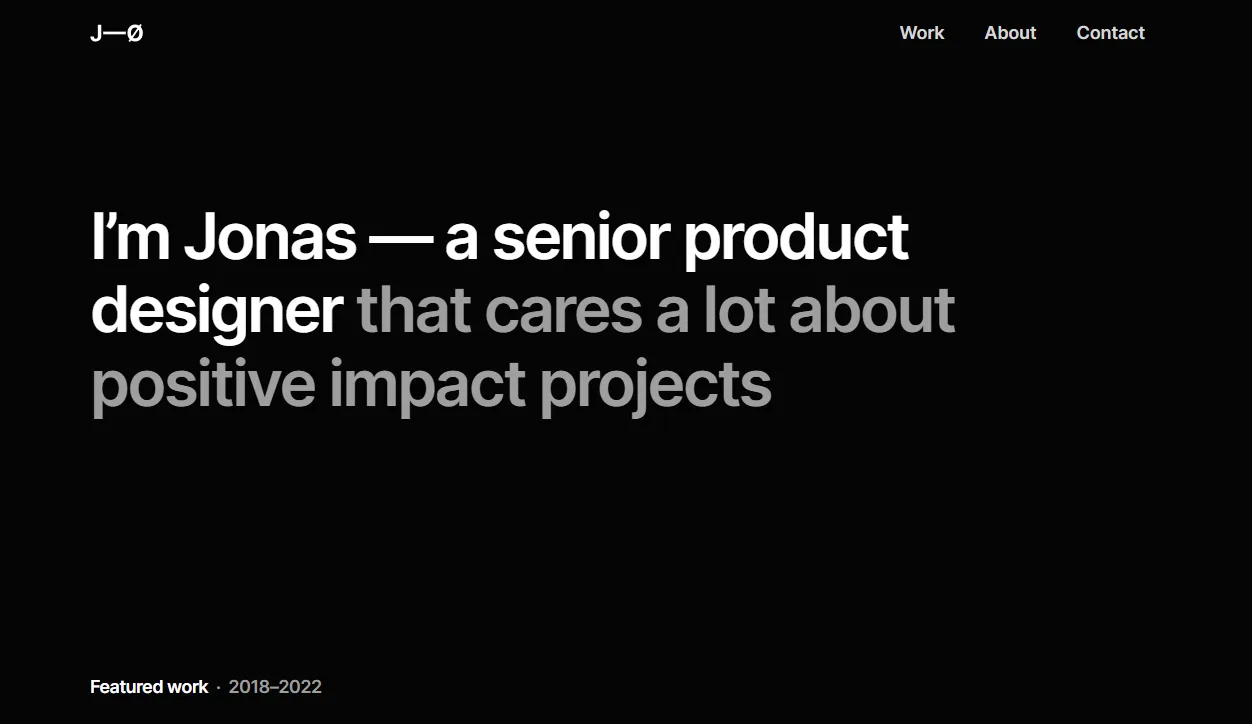
~$29
Best for: Beginners who want to launch a personal brand or portfolio site in under a day
Key features: Highly rated by beginners for ease of use. Intuitive structure, fast to customise, minimal design with strong typography. Users report setting it up in under 24 hours.
Find it: https://webflow.com/templates/html/lightfolio-dark-portfolio-website-template
06. Nova Persona – Personal Website Template by Anova Flow | Personal / Portfolio — Premium
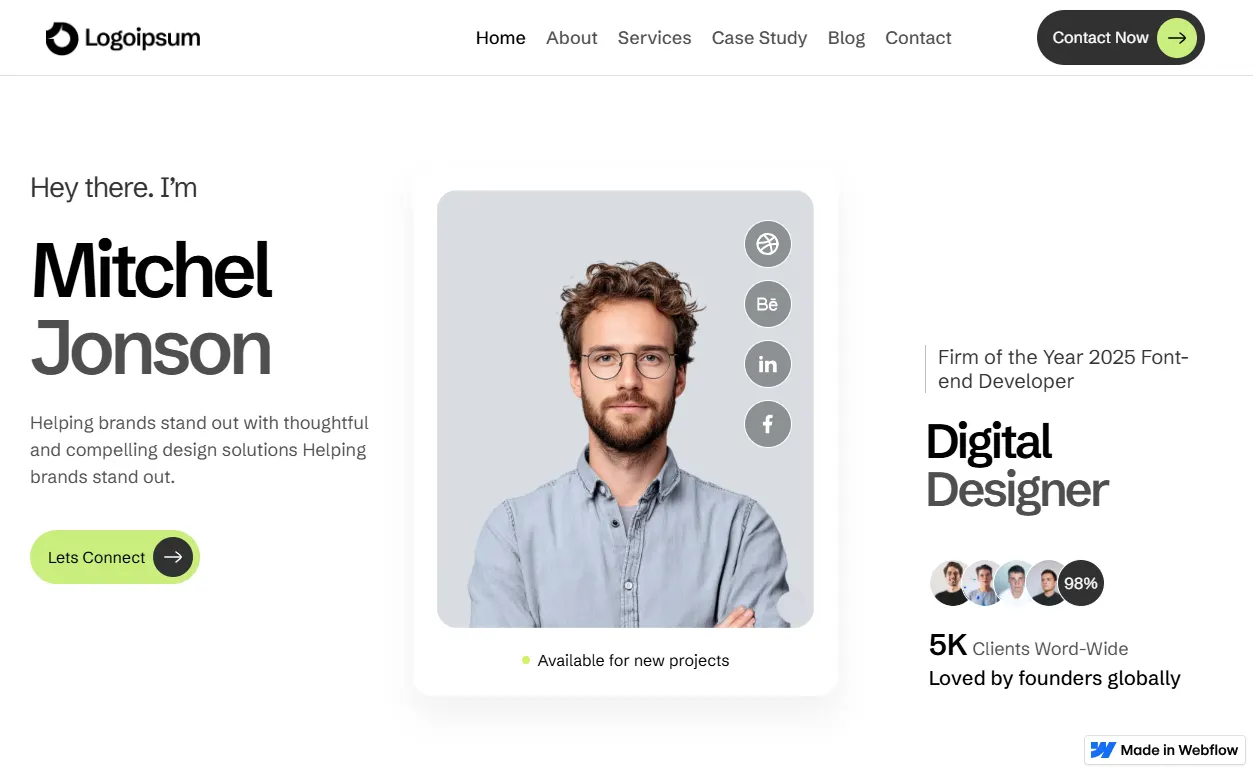 ~$59
~$59
Best for: Designers, freelancers, and anyone building their first portfolio.
Key features: Project showcase with case studies, service pages, smooth animations, CMS blog integration. One of the most visually polished templates available for this use case.
Find it: https://webflow.com/templates/html/nova-persona-website-template
What to Check Before Buying Any Webflow Template
Most template guides just show you a list of pretty designs. What they don’t tell you is what to actually look for before you buy. These are the five things that separate a template that saves you time from one that creates more work.
1. Check the pages included
Every template listing on the Webflow marketplace shows exactly which pages are included. A template with a homepage, about page, services page, blog, and contact page gives you a complete foundation. A template with only a homepage and a contact form will require you to build every other page from scratch — which defeats the purpose of using a template as a beginner.
2. Check whether CMS is set up
CMS stands for Content Management System. In Webflow, CMS lets you manage repeating content like blog posts, portfolio items, or team members through a structured database rather than editing individual pages. If you want a blog or a gallery that you can update easily, the template needs to have CMS collections already configured. Look for ‘CMS’ in the template’s feature list on its marketplace page.
3. Preview on mobile
Every template listed on webflow.com/templates has a mobile preview. Click through to it before buying. Some templates that look great on desktop have layout issues on smaller screens. Since a significant portion of web traffic comes from mobile, a template that isn’t properly responsive will hurt your site before you even launch.
4. Read the creator reviews
Each premium template page shows buyer reviews. Look for comments from people who mention beginner experience, ease of customisation, and quality of creator support. Templates with recent positive reviews from non-designers are a strong signal that they’re genuinely beginner-friendly — not just visually impressive.
5. Check the class structure
This is slightly more advanced but worth knowing. In the Webflow designer, you can preview a template before buying. If you see class names like ‘div-block-47’ and ‘div-block-12’ everywhere, the template was built carelessly and will be confusing to edit. Good templates use descriptive class names like ‘hero-section’, ‘nav-link’, and ‘card-title’. This makes customisation far more straightforward for a beginner.
How to Find and Use a Webflow Template: Step by Step
- Step 1 — Go to webflow.com/templates: Browse by category (Portfolio, Business, Blog, SaaS, eCommerce) or use the search bar to find templates for your specific use case.
- Step 2 — Preview the template: Click any template to see its full preview, page list, and feature breakdown. Switch between desktop and mobile views. Spend at least 5-10 minutes with the preview before deciding.
- Step 3 — Purchase and open in Webflow: For paid templates, complete the purchase via the marketplace. For free templates, click ‘Use for free’. Both options open the template directly in your Webflow Designer.
- Step 4 — Customise with your content: Replace the placeholder text and images with your real content. Update the colour palette using Webflow’s global style settings — changing the primary colour in one place updates it across the entire template.
- Step 5 — Set up your site plan and publish: When you’re ready to go live on a custom domain, connect your domain in the site settings and activate a paid site plan. The free Starter plan will let you test at yourname.webflow.io first.
Frequently Asked Questions
Are Webflow templates a one-time purchase or a subscription?
Webflow templates are a one-time purchase. You pay once and own the template licence permanently. However, you still need a separate Webflow site plan (a monthly hosting subscription starting at $14/month) to publish your site on a custom domain. The template cost and the hosting cost are separate.
Can I use a Webflow template for a client project?
Yes. Most Webflow templates include a licence for use on one website, which covers both personal and client projects. Some premium template creators offer extended licences for use on multiple client sites. Always check the specific licence terms on the template’s marketplace page before using it for a client.
Can I customise a Webflow template completely, or am I stuck with the original design?
You can customise almost everything in a Webflow template — layout, colours, fonts, spacing, animations, page structure, and content. Webflow’s visual editor gives you full access to the design layer, which means templates are a starting point, not a constraint. The only thing you cannot do is resell or redistribute the template itself.
What is the difference between a Webflow template and a cloneable?
A template is a paid or free design sold through the official Webflow marketplace (webflow.com/templates). A cloneable is a community-created project shared in the Made in Webflow section, you clone it into your own Webflow account using a share link. Both are fully editable once in your account. Templates tend to be more complete and polished; cloneables range from simple experiments to fully built sites.
Do Webflow templates work with all Webflow plans?
Yes, you can load and edit any template on the free Webflow Starter plan. You only need a paid site plan when you want to publish your site on a custom domain or access features like CMS publishing, form submissions above the free tier, or eCommerce functionality. Always check which features your chosen template uses before selecting a site plan.
Ready to Find the Best Webflow Template for Your Site?
The best Webflow templates for beginners are the ones that match what you’re actually building, not the ones that look the most impressive in a preview. For a portfolio, start with a free template like Olivia12 or Warsaw. For a business site or agency, a premium template like Strevora will save you significant time and look far more polished than anything you’d build from scratch at the beginner stage.
Take 30 minutes today to browse webflow.com, filter by your use case, and preview 3-4 options on both desktop and mobile. The right template is usually obvious once you see it in action.
For more help choosing the right Webflow setup, read our comparison of Webflow vs Framer, or browse our full Webflow templates category for curated picks across every use case.
