
You want a website. Maybe for your freelance work, a personal project, a startup idea, or just something that represents you online. You look up “best website builder,” and somewhere in the first few results, you keep seeing the name Framer. But when you land on its homepage, you’re not quite sure what you’re looking at. Is it a design tool? A website builder? Something only developers use?
You’re not alone. What is Framer is one of the most searched questions in the website builder space right now — and most answers either go too deep too fast, or barely scratch the surface.
This guide is written for you if you’re a complete beginner. By the end, you’ll know exactly what Framer is, how it works, what it costs, who it’s best for, and whether you should use it or try something else.
What Is Framer?
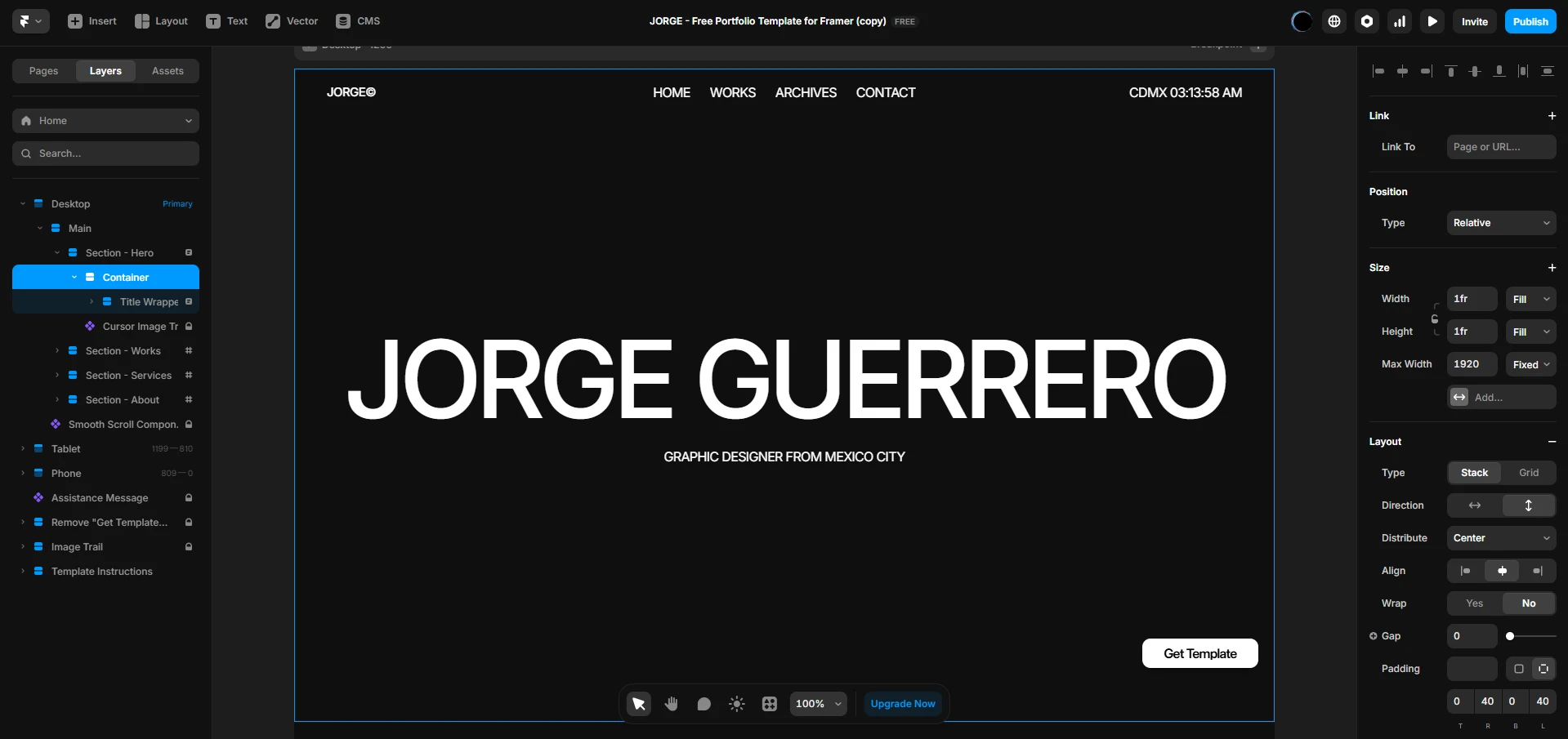
Framer is a no-code website builder that lets you design, build, and publish professional websites entirely visually, without writing a single line of code. You work on a freeform canvas where you place text, images, buttons, and sections exactly where you want them, and Framer turns that into a real, live website.
It was originally launched back in 2014 as a prototyping tool, software that designers used to mock up how apps and websites would look and feel before developers built them. Over the years, Framer has evolved well beyond that. Today, it’s a full website building and publishing platform trusted by over 500,000+ designers and creators, and used by companies like Perplexity AI, Miro, and Scale AI.
In August 2025, Framer raised $100 million in a Series D funding round at a $2 billion valuation, a signal that it’s well beyond a niche tool and very much a serious platform for building the modern web.
💡 The simplest way to think about it: Framer is what you’d get if you combined Figma’s design canvas with a website hosting platform — everything in one place, without needing a developer.
How Does Framer Actually Work?
Here’s the basic process. You sign up, open a project, and you’re greeted by a visual canvas. From there, you either:
- Start from a template — Framer has a marketplace of free and premium templates you can customise
- Use the AI site generator — Type a description of your site and Framer builds a first draft for you automatically
- Start from scratch — Drag and drop elements onto a blank canvas and build exactly what you imagine
Every element you add — a heading, an image, a button, a card — can be resized, repositioned, styled, and animated using controls in the sidebar. You’re not clicking through a form to set a background colour. You’re clicking directly on the thing you want to change, right on the canvas.
When you’re happy with your design, you click Publish. Framer handles all the technical side — hosting, SSL certificate (which makes your site secure with the padlock in the browser), performance, and global delivery. Your site goes live in seconds.
What Happens Behind the Scenes?
You don’t need to know this to use Framer — but it’s good to understand. When you design in Framer, the platform generates clean code underneath. Your site is delivered through AWS CloudFront, a global content delivery network with over 300 cache locations around the world. In plain terms: your site loads fast, for everyone, wherever they are. This also matters for SEO, since page speed is a ranking factor for Google.
What Can You Do in Framer? Key Features Explained Simply
1. Freeform Visual Design Canvas
Most website builders lock you into a grid. You move a block here, drag a section there, and the result looks like thousands of other websites built with the same tool. Framer gives you a freeform canvas — meaning you place elements wherever you want, with full control over sizing, spacing, and layout. It’s the difference between colouring inside the lines and having a blank page.
2. Built-in CMS for Blogs and Dynamic Content
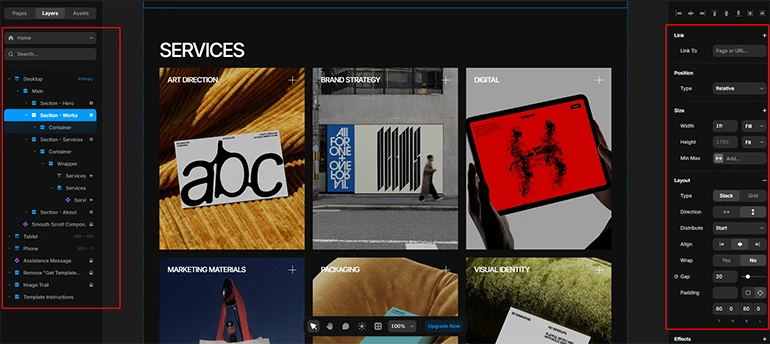
CMS stands for Content Management System — it’s the part of a website that stores and organises your content. Framer has a built-in CMS that lets you manage blog posts, portfolio projects, team members, or any repeating content without touching your design. You create a template page once, and Framer generates individual pages for each piece of content automatically.
If you want to run a blog on Framer, this is how it works. Write your posts in the CMS, and they appear on your site styled exactly how you designed it.
3. Animations and Interactions Without Code
This is one of Framer’s biggest strengths and a genuine differentiator. You can add scroll animations (elements that fade in as you scroll down), hover effects (buttons that change colour or scale when you hover over them), and page transitions — all visually, with no JavaScript knowledge required. The result is the kind of polished, interactive feel that normally takes a developer hours to build.
4. AI Site Generator
Framer includes a built-in AI tool that generates complete website layouts from a text description. You type something like “A portfolio site for a freelance photographer with a dark theme and minimalist layout” and Framer builds a full multi-section page to start from. It’s not magic — you’ll still want to customise the layout and rewrite the placeholder copy with your own words — but it removes the intimidating blank canvas problem for beginners completely.
5. Responsive Design for Mobile
Every website you build in Framer can be adapted for different screen sizes — desktop, tablet, and mobile. Framer uses breakpoints (you can think of them as “rules for what happens when the screen gets smaller”) that you set visually. You can see exactly how your site looks on each device before publishing.
6. SEO Tools Built In
Framer lets you set meta titles, meta descriptions, alt text for images, and generates sitemaps automatically. You don’t need a plugin or a separate tool. If SEO matters to you — meaning you want people to find your site on Google — Framer covers the basics without extra steps.
7. Real-Time Collaboration
If you’re working with a team, Framer lets multiple editors work on the same site at the same time, with real-time updates. Think of it like Google Docs for your website.
Who Is Framer Actually For?
Here’s the honest breakdown. Framer is a good fit if you’re:
- A designer or creative — Framer’s canvas feels familiar if you’ve used Figma or similar tools. You get real design control, not a constrained template system.
- A freelancer building client websites — Framer lets you produce polished, professional results faster than coding from scratch, and faster than fighting with rigid builders.
- A startup or small business — Many tech startups use Framer for their marketing sites. The animations and design quality give a polished, credible first impression without a large development budget.
- A blogger or content creator — If your content site needs to look distinctive and you want a CMS that doesn’t feel like a chore, Framer works well for this.
- A complete beginner who cares about how their site looks — The AI site generator and template library mean you can get something genuinely good-looking live quickly, then learn from there.
Framer is probably not the right starting point if:
- You need a large eCommerce store — Framer has basic eCommerce features, but for selling a large catalogue of products with inventory management, Shopify is a much better choice.
- You want thousands of plugins — WordPress has a plugin for almost everything. Framer doesn’t compete on this front.
- You only need a one-page site and want zero learning — If speed is everything and design quality doesn’t matter much, Carrd or Wix gets you live in under 30 minutes.
How Much Does Framer Cost?
Framer has a free plan and three paid tiers. Here’s the current breakdown based on Framer’s official pricing page:
Plan | Price | Best For | Key Limits |
Free | $0/mo | Learning, portfolios, non-commercial | Framer subdomain, 1K visitors/mo, no custom domain |
Basic | $10/mo | Personal sites, freelancers | Custom domain, 1 CMS collection, 30 pages |
Pro | $30/mo | Professionals, small teams | Staging, unlimited CMS, more editors |
Scale | $100/mo | Startups, growing businesses | A/B testing, advanced hosting add-ons |
Enterprise | Custom | Large organisations | Custom limits, SLA, dedicated support |
Important note on the Free plan: The free plan is genuinely useful for learning and experimenting. It includes 10 CMS collections, up to 1,000 pages, and support for up to 1,000 visitors per month — but your site will be on a Framer subdomain (e.g. yoursite.framer.app) and will display a “Made in Framer” banner. To connect a custom domain (e.g. yourname.com), you need the Basic plan.
⚠️ Pricing heads-up: Framer bills per editor (person who can edit the site), not just per plan tier. Adding collaborators increases the cost. Check framer.com/pricing for the latest figures before purchasing, as pricing can change.
🎓 Student tip: If you’re a student, Framer offers a free Basic plan for verified students enrolled in any accredited school, college, or university. Check framer.com/students to apply.
Framer vs Other Website Builders: How Does It Stack Up?
Here’s an honest side-by-side look at how Framer compares to the most common alternatives:
Framer | Webflow | Wix | Squarespace | |
Ease of Use | Easy–Moderate | Moderate | Very Easy | Easy |
Design Freedom | Exceptional | Very High | Medium | Medium |
Animations | Excellent | Good | Basic | Limited |
Built-in AI | Yes (full page) | Yes (assist) | Yes | Limited |
CMS for Blogs | Yes | Yes (deeper) | Yes | Yes |
eCommerce | Limited | Yes | Yes | Yes |
Hosting Included | Yes (AWS CDN) | Yes | Yes | Yes |
Free Plan | Yes | Yes | Yes | No |
Starting Price | $10/mo | ~$14/mo | ~$17/mo | ~$16/mo |
Best For | Design-first sites | Design control | Quick setup | Portfolios |
Framer vs Webflow
These two are the most commonly compared. Both are design-first no-code builders with real creative freedom. The key difference: Webflow gives you more structured CSS-like control and a more mature CMS for complex content. Framer’s canvas feels more like a design tool, its animations are easier to build, and its AI features are more advanced. For most marketing sites and portfolios in 2026, Framer is generally the faster path to a polished result. For deep CMS needs or eCommerce, Webflow has an edge.
Framer vs Wix
Wix is easier to get started with and better for absolute beginners who want something live in under an hour. Framer produces significantly better-looking sites with smoother animations and more design control. If your website’s appearance matters to you and you’re willing to give it a couple of hours to learn, Framer is worth the small extra effort.
Framer vs Squarespace
Squarespace is polished and reliable for portfolios and simple business sites. But it’s template-constrained — what you see is pretty much what you get. Framer gives you more flexibility and better animation capabilities. Squarespace has a stronger e-commerce offering.
Is Framer Hard to Learn?
The honest answer: it depends on what you’ve used before.
If you’ve ever used Figma or Canva, Framer’s canvas will feel immediately familiar. The visual logic is similar. Most people with prior design tool experience can build and publish a basic site within a few hours of signing up.
If you’ve never used any design or website-building tool before, expect to spend a few days getting comfortable. The canvas can feel unfamiliar at first, especially concepts like Stacks (Framer’s way of arranging elements in rows or columns) and breakpoints for responsive design. These aren’t difficult, they’re just new.
Framer has its own Framer Academy with free tutorials, video lessons, and structured courses that walk you through everything from scratch. It’s well-made and genuinely beginner-friendly.
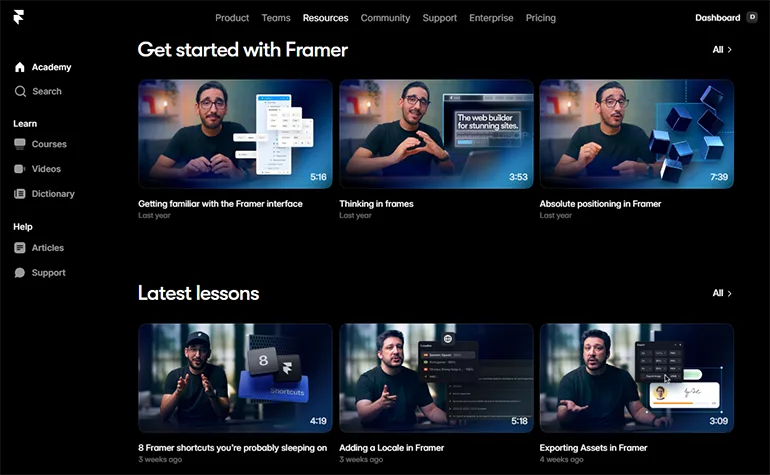
✅ Realistic expectation: If you start with a template, use the AI generator, and follow one Framer Academy tutorial, you can have a real, live website published within a single afternoon. It won’t be perfect, but it will be yours.
My Honest Recommendation: Should You Use Framer?
Yes — with one important caveat. Framer is one of the strongest website builders available in 2026, especially if you care about how your site looks and feels. The combination of design freedom, built-in animations, AI site generation, and competitive pricing makes it a genuinely excellent choice for most personal and professional websites.
The caveat is this: if you’re only looking to sell a large range of products online, you’ll be better served by Shopify. And if you truly need to get something live in the next hour with no learning whatsoever, Wix will do it faster.
But for portfolios, personal brands, startup marketing sites, freelancer sites, blogs, and creative projects — Framer is the tool I’d recommend. The free plan gives you enough room to build, explore, and publish something real before you spend a cent. That’s a low-risk way to find out if it works for you.
If you want to start with a professionally designed foundation instead of a blank canvas, our guide to the best Framer templates for beginners can help you find the right starting point.
Frequently Asked Questions About Framer
Q: Is Framer completely free to use?
Yes, Framer has a free plan that lets you build unlimited projects and publish them on a Framer subdomain (e.g. yoursite.framer.app). The free plan includes 10 CMS collections, up to 1,000 pages, and supports up to 1,000 visitors per month. To connect a custom domain and remove the Framer branding, you’ll need the Basic plan at $10/month. Always check framer.com/pricing for the latest details.
Q: Do I need to know how to code to use Framer?
No. Framer is a no-code platform — you design and publish entirely visually. That said, Framer does allow developers to add custom code components if they want to, but this is entirely optional. Beginners never need to touch a line of code.
Q: Is Framer better than Webflow for beginners?
For most beginners, Framer has a gentler starting point. Its AI site generator and template library mean you can get a good-looking site live faster. Webflow has a steeper initial learning curve because it works more like a CSS-based tool. That said, Webflow has a more powerful CMS for complex content. For simple portfolios, personal sites, and marketing pages, Framer is generally the easier choice.
Q: Can I build a blog or add a CMS to my Framer site?
Yes. Framer has a built-in CMS that lets you create dynamic content like blog posts, portfolio pieces, or product listings. You design the template page once, and Framer auto-generates individual pages for each piece of content. The Basic plan includes 1 CMS collection; the Pro plan gives you more. For a content-heavy blog with multiple categories, the Pro plan is the better fit.
Q: What kinds of websites can I build with Framer?
Framer works well for portfolios, personal websites, startup marketing sites, SaaS landing pages, freelancer sites, blogs, and creative agency sites. It’s not the strongest choice for large eCommerce stores (Shopify is better for that) or sites that need a complex plugin ecosystem (WordPress wins there). For design-forward, content-light or moderately content-rich sites, Framer handles them very well.
Conclusion
So, what is Framer? It’s a no-code website builder that gives you the design freedom of a professional design tool, the speed of a one-click publishing platform, and the polish of a developer-built site — all without writing code. It’s backed by real investment, used by serious companies, and accessible enough for complete beginners thanks to its AI tools and template library.
Is it perfect for every use case? No. But for anyone building a portfolio, a personal brand site, a startup marketing page, or a freelance business site, it’s one of the most capable tools available at any price point in 2026.
The smartest thing to do? Try it for free. Sign up, use the AI generator or pick a template, and see how it feels. You’ll know within an afternoon whether Framer is the right tool for you.
Looking for a head start? Check our details guide about Best Website Builders for Beginners.
